

Access Your KK8 Account Securely
KK8 provides a straightforward sign-in page for existing users to access their accounts with a registered UID and password. The login interface also includes Remember Me, Forgot UID and Forgot Password functions to make account access and recovery easier when needed.
Users who need more account guidance can visit the User Guide (/en/user-guide) (Internal Link), while new users can use the Register page (/en/register) (Internal Link) to create an account. The main website is also available at https://kk8official.my (Naked URL).
How to Log In to Your KK8 Account
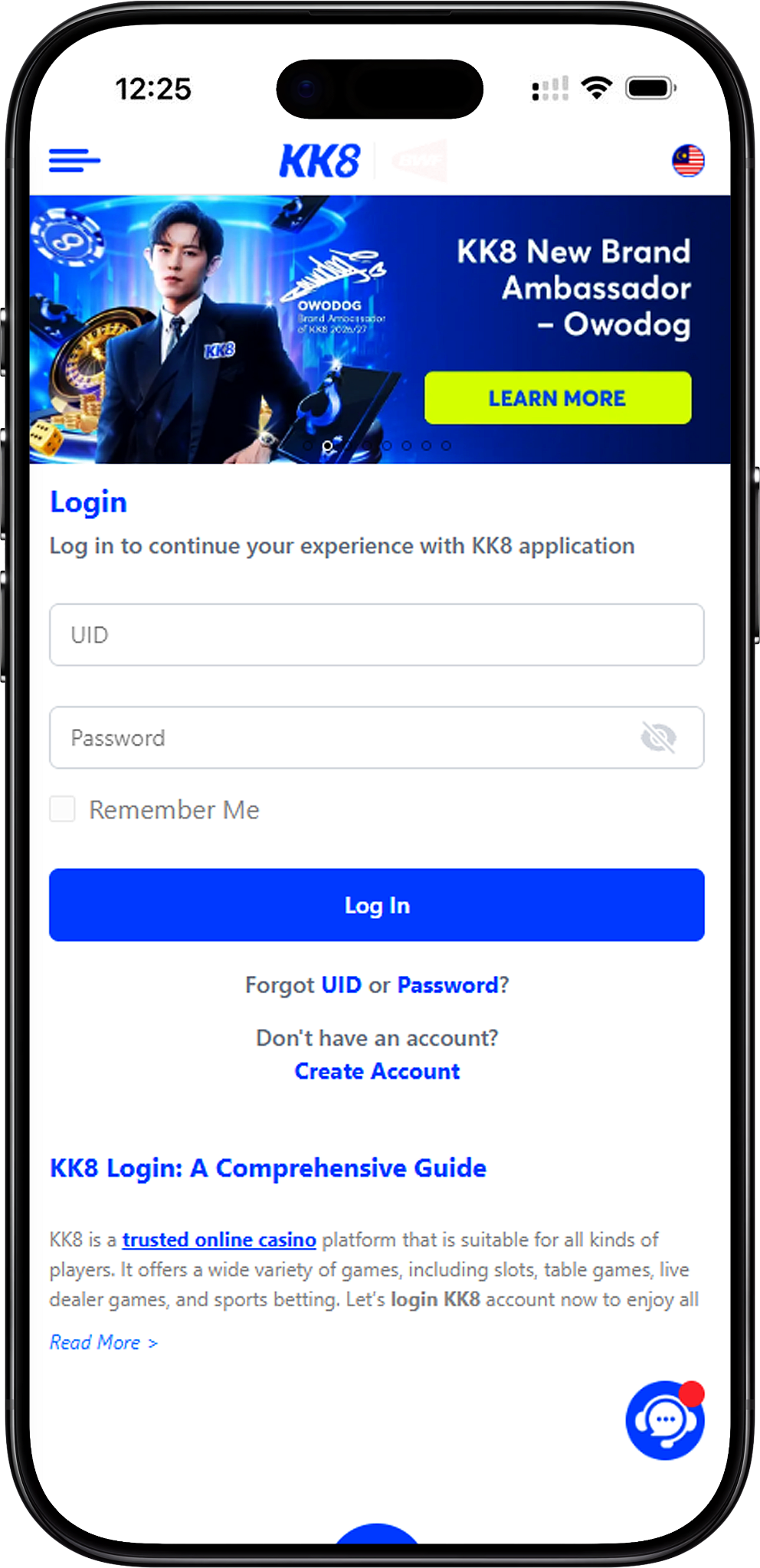
Existing users can access their accounts in a few steps. Use the official login page, enter the credentials associated with your account and check the information carefully before submitting it. Jump to Step 1 Open the Official Login Page (#step-1-open-the-official-login-page) (Anchor Link), Step 2 Enter Your UID (#step-2-enter-your-uid) (Anchor Link), Step 3 Enter Your Password (#step-3-enter-your-password) (Anchor Link), Step 4 Choose Whether to Use Remember Me (#step-4-choose-whether-to-use-remember-me) (Anchor Link), or Step 5 Select Log In (#step-5-select-log-in) (Anchor Link).
Step 1 Open the Official Login Page
Start by opening the official account access page on a compatible desktop or mobile browser. Check that you are using the intended website before entering credentials, particularly when following a link from a message, advertisement or search result.
Step 2 Enter Your UID
Type the UID associated with your registered account into the UID field. Enter it exactly as registered and check for typing errors before proceeding. If you cannot remember it, use the account recovery option instead of guessing repeatedly.
Step 3 Enter Your Password
Enter the password associated with your account. The password field can conceal the characters you type, and the visibility control can help you check the entry when appropriate. Avoid displaying your password when other people can see your screen.
Step 4 Choose Whether to Use Remember Me
The Remember Me option can make future access more convenient on a personal device. Avoid enabling this feature on shared, public or unfamiliar devices because saved login information may increase the risk of unauthorized account access.
Step 5 Select Log In
After confirming your UID and password, select Log In to submit the credentials. If the details are valid, you can continue to your account. If an error appears, check your credentials before attempting additional troubleshooting.
Sign In on Web and H5
KK8 supports browser-based account access, allowing users to sign in through compatible Web and H5 experiences without relying on a single device type. The interface and available functions may vary according to the device, browser and current platform version.
Web Login on Desktop
On a desktop or laptop, open the login page in a supported browser and enter your UID and password. Keep your browser updated, use a stable connection and avoid entering account credentials on a public computer whenever possible.
H5 Login on Mobile
The H5 experience allows users to access the account interface through a compatible mobile browser. Enter the same registered credentials and make sure the browser page is legitimate before signing in. For other supported access options, see KK8 Download (/en/download) (Internal Link).
Use the Same Registered Credentials
Your account credentials should correspond to the information associated with your registered account. If you have recently changed your password, use the updated password rather than credentials previously stored by your browser or password manager.
Recover a Forgotten UID
Users who cannot remember their UID can use the account recovery function displayed on the login page. The recovery screen supports verification through Phone Number or E-mail, depending on the available account information and recovery method.
Request Your UID by Phone Number
Select Forgot UID and choose Phone Number when that option matches the contact information linked to your account. Enter the requested phone number, select Send OTP and provide the verification code received through the applicable channel before continuing.
Request Your UID by E-mail
If E-mail recovery is available for your account, select the E-mail option and provide the requested registered information. Complete any OTP or identity verification shown on screen before proceeding with UID recovery.
What to Do If the OTP Does Not Arrive
Confirm that the phone number or email address is entered correctly, allow time for delivery and check filtered email folders where relevant. Avoid requesting many codes within a short period. If verification still fails, use the Contact Us option displayed on the recovery page or review Forget UID (/en/user-guide/forget-uid) (Internal Link).
Reset a Forgotten Password
If you remember your UID but cannot recall the password, use the password recovery function rather than repeatedly attempting different passwords. The reset interface can verify account access through a registered phone number or email address when those methods are available.
Start the Password Reset Process
Select Forgot Password from the login screen to open the Reset Password page. Choose Phone Number or E-mail according to the contact information associated with your account, then provide the requested details.
Verify Your Account with an OTP
Select Send OTP when prompted and enter the verification code delivered to the registered contact method. OTP codes are security credentials, so do not share them with another person or enter them on an unrelated website.
Create a New Password
After successful verification, follow the displayed instructions to set a new password. Choose a strong and unique password that is not reused for other online accounts. For additional instructions, visit Forget Password (/en/user-guide/forget-password) (Internal Link).
Troubleshoot Login Problems
Login failures can have several causes, including incorrect credentials, outdated saved passwords, connection problems or temporary browser issues. Work through the likely causes systematically instead of making repeated unsuccessful login attempts.
Check Your UID and Password
Make sure both required fields are complete and verify that the UID and password are entered correctly. Check capitalization where relevant and remove unintended spaces. If the credentials are no longer known, use the appropriate recovery function.
Check Your Internet Connection
An unstable connection can interrupt account access or prevent the login request from completing. Confirm that other webpages load normally and reconnect to a trusted network before trying again when necessary.
Refresh or Update Your Browser
If the login interface does not load or respond correctly, refresh the page and make sure your browser is current. Browser extensions, restrictive privacy settings or corrupted site data can sometimes affect website functionality.
Review Saved Login Information
Browsers and password managers may automatically fill an older password after credentials have been changed. Clear the incorrect saved entry or manually enter your current credentials before submitting the form again.
Contact Support When the Issue Continues
If your credentials appear correct but you still cannot access the account, use the official support option shown on the website. Provide relevant details about the problem without disclosing your password or OTP. The FAQs (/en/faqs) (Internal Link) may also provide answers to common account questions.
Keep Your Account Login Secure
Secure account access depends on both the platform and the way credentials are handled. Simple precautions can reduce the risk of exposing your password, verification codes or account information.
Use a Strong and Unique Password
Create a password that is difficult to guess and different from passwords used on other services. If you suspect that another person knows your credentials, change the password promptly and review your account activity where that information is available.
Keep Your UID, Password and OTP Private
Do not send your password or OTP through chat, email or social media. Verification codes should only be entered into the appropriate official verification interface when you initiate an account action.
Avoid Untrusted Login Pages
Check the page and website carefully before entering credentials. Be cautious with unexpected links that claim an urgent account problem, bonus requirement or verification request, as deceptive pages can imitate legitimate login interfaces.
Change Your Password When Necessary
If you need to replace an existing password while you can still access your account, follow the How to Change Password guide (/en/user-guide/how-to-change-password) (Internal Link). Use a new password rather than making a minor variation of a compromised one.
Frequently Asked Questions About Login
What information do I need to sign in?
The login screen requires the UID and password associated with your registered account. Both fields must be completed before the Log In button can be used successfully.
What should I do if I forget my UID?
Select Forgot UID on the login page and follow the available recovery process. Depending on your account information, you may be able to request the UID using a registered phone number or email address and an OTP verification step.
What should I do if I forget my password?
Select Forgot Password and choose an available verification method. Complete the requested OTP verification and follow the displayed instructions to create a new password.
Can I use Remember Me on my device?
Remember Me can be convenient on a trusted personal device, but it should generally be avoided on public or shared devices. Always sign out after using an account on a device that other people can access.
Can a new user log in immediately?
A new user first needs a successfully created account and the required credentials. If you have not registered yet, visit the Register page (/en/register) (Internal Link) and complete the applicable account setup and verification process.
Where can I get more help with my account?
Visit the User Guide (/en/user-guide) (Internal Link) for account instructions or the FAQs (/en/faqs) (Internal Link) for common questions. If a login or recovery problem cannot be resolved through those resources, use the official support channel displayed on the website.
Access Your Account
Enter your registered UID and password to sign in. If you cannot remember your credentials, use the UID or password recovery options and complete the required verification securely.